Click to fix is in early access. It’s only available to organisations that Oplane has turned it on for. If you don’t see the settings below, contact your Oplane representative.
When Oplane reviews a pull request or merge request and finds security requirements that need attention, it can also write the code fix for each one. You review the suggested changes in Oplane, pick the ones you want, and Oplane commits them to the PR or MR branch for you. For how reviews run, see Pull requests for GitHub and Merge requests for GitLab.

Turn on suggested fixes

Suggested fixes are off by default. You turn them on per repository in workspace settings, so you need to be a workspace owner or an org admin. See Roles and permissions.
1

Open workspace settings

Open the workspace connected to the repository and go to its settings.
2

Find the repository

Find the linked repository and make sure PR/MR analysis is enabled.
3

Choose a fix level

Under Suggest fixes for findings, select Manual. Oplane then generates a fix for each unresolved finding it can fix automatically, and nothing gets committed until you apply it.
The setting applies to reviews that run after you change it. To get fixes on an open PR or MR, push a new commit or comment oplane review on it.
If your organisation also has autofix turned on, the dropdown has an Autofix option. With Autofix, Oplane commits every suggested fix automatically without anyone clicking Implement.

Open the fixes from your PR or MR

After the review finishes and the fixes are ready, the Oplane Security Review comment on the PR or MR gets a Fix with Oplane button. The button only appears once Oplane has generated all the fixes, so it can take a little longer to show up than the comment itself. Click Fix with Oplane to open the fix page for that threat model in Oplane.
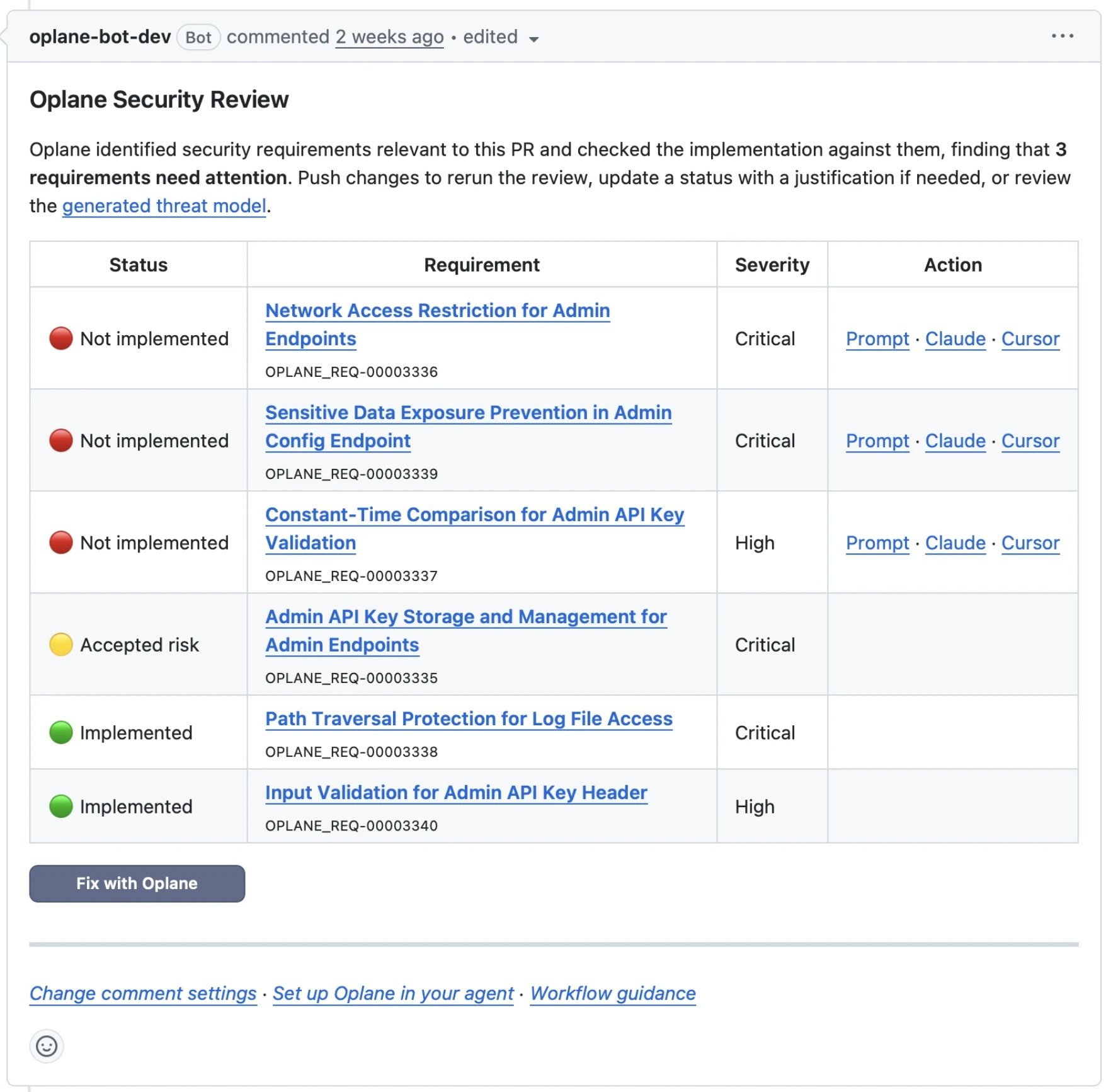
Oplane Security Review comment on a GitHub pull request, listing six requirements with the Fix with Oplane button below the table

The Fix with Oplane button at the bottom of the Oplane Security Review comment.

Review the suggested fixes

The fix page lists the PR or MR requirements in three groups in the sidebar: Select a requirement to see its rationale, the affected files, and a diff of the suggested change. Switch between Split and Unified to change how the diff is shown.
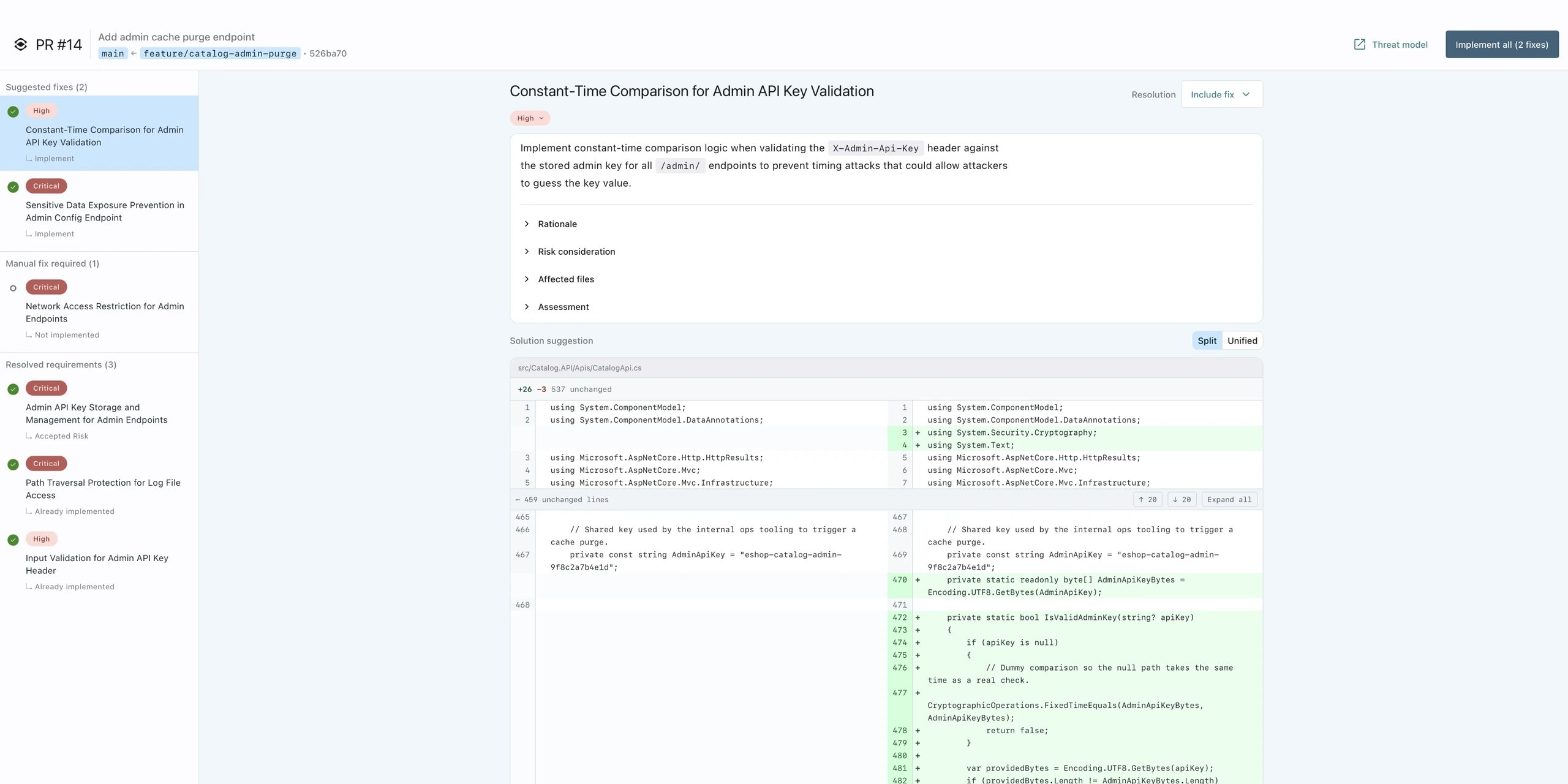
Oplane fix page for PR #14 showing the requirements sidebar grouped into suggested fixes, manual fix required, and resolved requirements, a diff of the selected fix, and the Implement all button

The fix page for a pull request, with a suggested fix selected and its diff in split view.

Uncheck any fix you don’t want to apply. You can also use the Resolution menu on a requirement to pick Exclude fix, or set an implementation status such as Accepted Risk with a motivation.
If a new review starts on the PR or MR while you’re on the fix page, the page is paused until the review finishes. That way you always apply fixes against the latest findings.

Apply the fixes

Click Implement all (or Implement if you unchecked some fixes). The button shows how many fixes it will apply. Oplane then shows the progress while it prepares the changes, applies them, and commits them. The fixes are committed together in one commit on the PR or MR source branch. If any of them can’t be applied, Oplane commits nothing. The commit is made by the Oplane app, not by your own Git account. Oplane still records who clicked Implement in its own audit log. When the job is done, you see a list of the applied fixes and a View commit button. The new commit triggers a follow-up review, which checks that the fixes work and didn’t introduce new issues. If you leave the page while the job is running, you can come back to it later. The fix page shows a banner with View progress or View result until a newer review replaces the result.

When a fix can’t be applied

If Oplane can’t commit the fixes, the result page tells you why:

Give feedback

Since click to fix is in early access, we’d like to hear what works and what doesn’t. Send your feedback to your Oplane contact, and include a link to the PR or MR if you can.