> ## Documentation Index
> Fetch the complete documentation index at: https://www.oplane.com/docs/llms.txt
> Use this file to discover all available pages before exploring further.
# Connect GitHub repositories to Oplane
> Connect Oplane to your GitHub repositories to enable automated threat modeling on pull requests. The setup takes just a few minutes.
Connect Oplane to your GitHub repositories to enable automated threat modeling on pull requests. The setup takes just a few minutes.
Navigate to **Workspaces** in the left sidebar and click the **+ Workspace** button in the top right corner.

 On the New Workspace page, enter a **Name** and optional **Description**. Then under **Sources**, click **Continue with GitHub** to connect your account. You can also set **Access** for the workspace on this same page, or leave **Sources** empty to run threat modeling locally via [MCP](/docs/find/mcp).
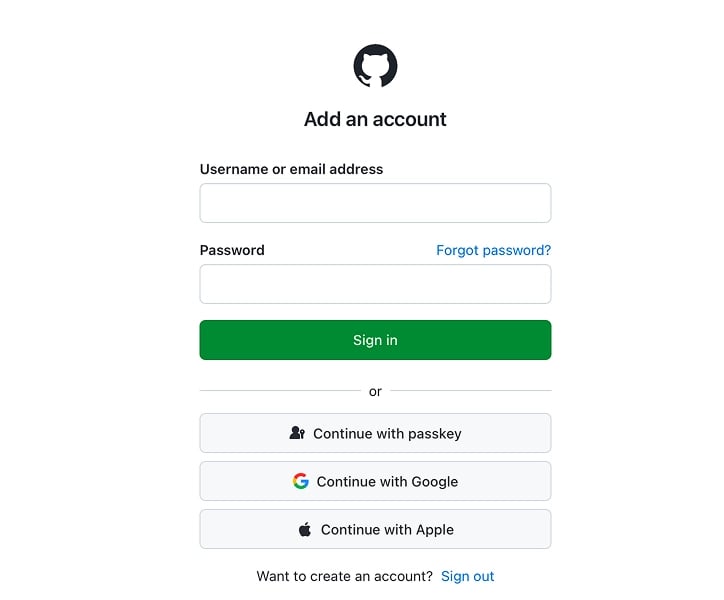
 Oplane redirects you to GitHub to sign in. Enter your credentials or use one of the alternative sign-in methods (passkey, Google, Apple).
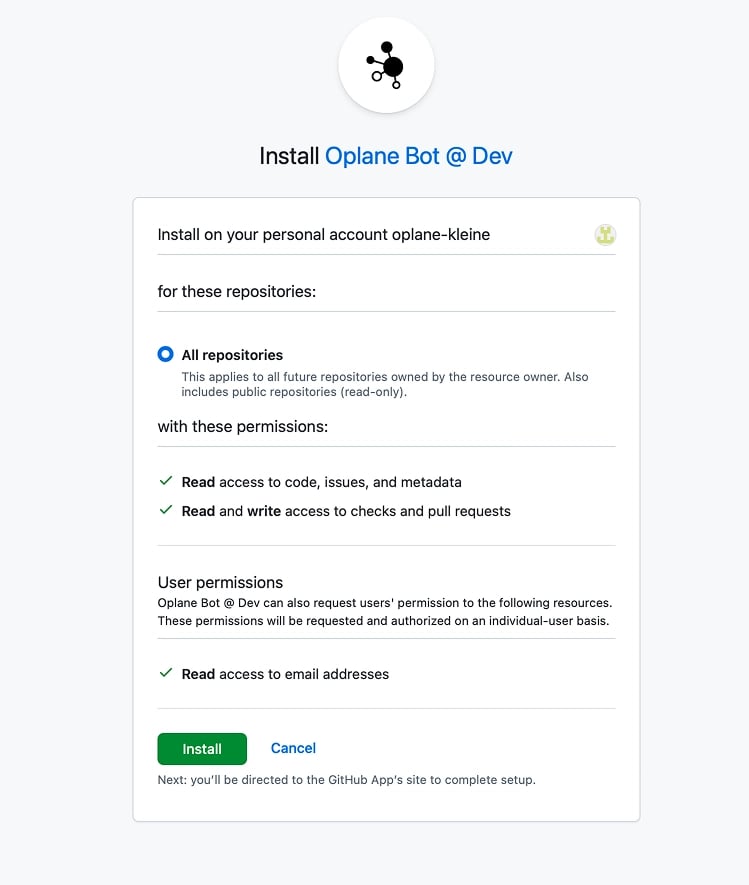
 GitHub prompts you to install the Oplane Bot on your account or organisation. Choose which repositories Oplane should have access to, review the permissions, and click **Install**.
Permissions granted: Read access to code, issues, and metadata. Read and write access to checks and pull requests, which is how Oplane posts review comments on your PRs.
GitHub prompts you to install the Oplane Bot on your account or organisation. Choose which repositories Oplane should have access to, review the permissions, and click **Install**.
Permissions granted: Read access to code, issues, and metadata. Read and write access to checks and pull requests, which is how Oplane posts review comments on your PRs.
 Once your account is connected, **Sources** shows a Git namespace dropdown alongside a repository search. Pick the namespace (your personal account or an organisation), search for the repository you want, and click **Select**. Use **Add GitHub account** or **Switch Git provider** in the dropdown to connect a different account or provider.
GitHub organisations already claimed by a different Oplane organisation appear greyed out in the picker and cannot be selected. See [Namespace claims](/docs/how-it-works/workspaces#namespace-claims) for details.
Once your account is connected, **Sources** shows a Git namespace dropdown alongside a repository search. Pick the namespace (your personal account or an organisation), search for the repository you want, and click **Select**. Use **Add GitHub account** or **Switch Git provider** in the dropdown to connect a different account or provider.
GitHub organisations already claimed by a different Oplane organisation appear greyed out in the picker and cannot be selected. See [Namespace claims](/docs/how-it-works/workspaces#namespace-claims) for details.
 Once a repository is selected, an **Analyse Pull Requests** toggle appears. Leave it on to automatically threat model every PR. If disabled, you can still trigger reviews by mentioning `@oplane` in a PR comment.
Under **Access**, add team members who should have access and set **General access** (Restricted, or open to the organisation). Then click **Create**.
Once a repository is selected, an **Analyse Pull Requests** toggle appears. Leave it on to automatically threat model every PR. If disabled, you can still trigger reviews by mentioning `@oplane` in a PR comment.
Under **Access**, add team members who should have access and set **General access** (Restricted, or open to the organisation). Then click **Create**.
 Oplane analyses your repository and suggests threat models based on the codebase. Select the ones relevant to your project, or describe your own scope in the text box. You can also click **Skip and go to workspace** to do this later. This step helps Oplane understand what to focus on in future PR reviews.
 Learn how Oplane reviews your pull requests.
This documentation is built and hosted on [Mintlify](https://mintlify.com), a developer documentation platform.
Learn how Oplane reviews your pull requests.
This documentation is built and hosted on [Mintlify](https://mintlify.com), a developer documentation platform.